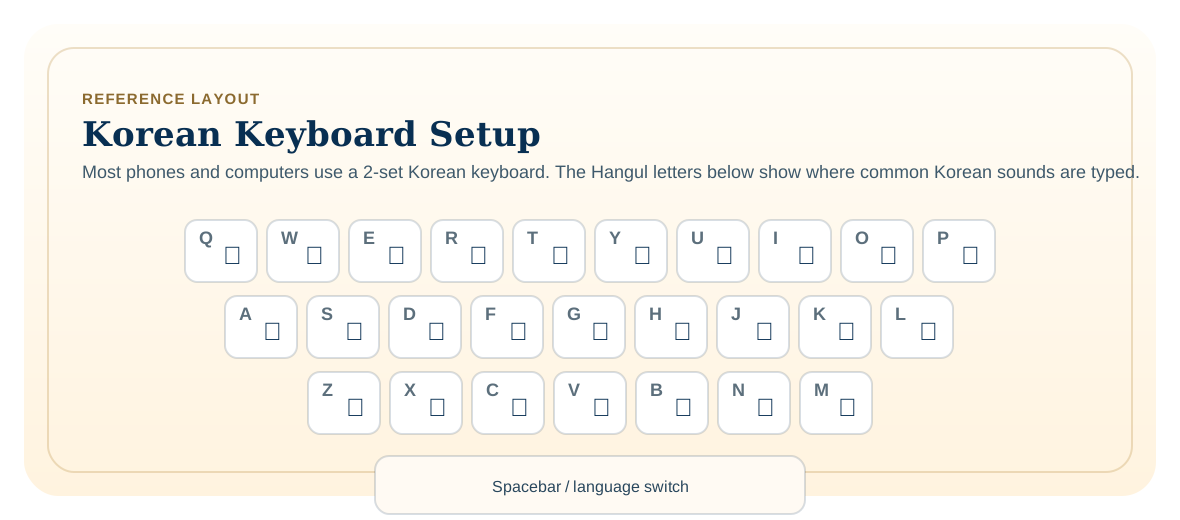
Adding a Korean keyboard can make it easier to type names, addresses, messages, and search terms when you are communicating with family or exploring Korean resources.
Back to Resource HubMost Korean keyboards use the 2-set layout. You do not need to memorize it right away; this is just a visual reference for where the Hangul letters appear.
Samsung Galaxy Phones
Open Settings.
Tap General management.
Tap Samsung Keyboard settings.
Tap Languages and types, then Manage input languages.
Turn on Korean. If prompted, download the language first.
When typing, switch between English and Korean using the language key or by swiping the spacebar.
iPhone and iPad
Open Settings.
Tap General, then Keyboard.
Tap Keyboards, then Add New Keyboard.
Choose Korean.
When typing, touch and hold the globe or emoji key, then choose the Korean keyboard.
Mac
Open the Apple menu, then System Settings.
Click Keyboard.
Under Text Input, click Edit.
Click the add button, search for Korean, choose a Korean input source, then click Add.
Use the Input menu in the menu bar, or press Control-Space, to switch keyboards.
Windows
Open Start, then Settings.
Select Time & language, then Language & region.
If Korean is not installed, select Add a language, choose Korean, and install it.
To add or confirm the keyboard, select the three-dot menu next to Korean or your current language, then choose Language options.
Under Keyboards, select Add a keyboard if needed and choose a Korean keyboard layout.
Switch keyboards from the language icon in the taskbar, or press Windows key + Spacebar.
A Simple Way to Practice
Try typing your Korean name, a short greeting like 안녕하세요, or the name of a place you want to search. It is okay to move slowly. Even a few familiar words can make Korean apps and family messages feel more approachable.
If something does not look right, use Papago, Google Translate, Google Lens, or ChatGPT as a backup to check spelling or understand what you are seeing.